The first organization administrator
Set up MFA, sign in again, accept membership and finish first-owner access.
Start here after creating a new organization through CRM. First-owner access requires your own MFA, a fresh signed login and explicit membership consent, followed by the guided owner-activation step. New organizations are no longer created through operator onboarding commands.
Step by step
- Use the organization sign-in link returned by Create an organization. Keep that link: each organization has its own sign-in and credentials.
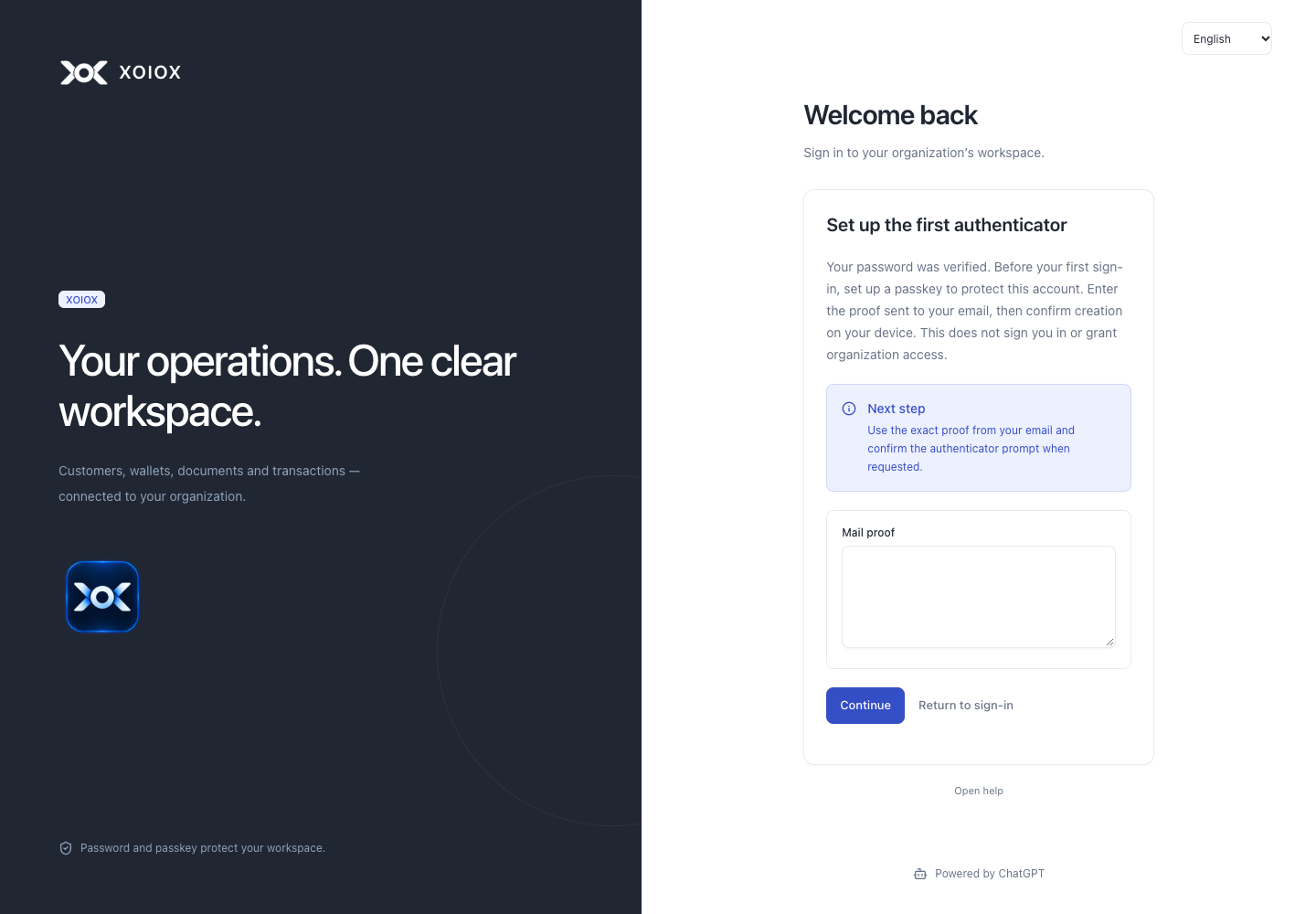
- Open that organization’s sign-in link and enter your enrolled email and password. With no active authenticator, a verified password automatically opens Set up the first authenticator. An account with an active device instead asks you to confirm sign-in with that device.
- Enter the fresh proof delivered to your email for this MFA setup. Continue and approve passkey creation on your security key or device, including its user verification. This proof is separate from the earlier organization-registration code, invitation token and password-enrollment proof.
- When MFA setup completes, download the new recovery codes and store them privately before leaving. MFA setup has created no signed-in session or organization membership.
- Return to sign-in. Enter your password again and confirm with the newly registered device to complete a fresh login.
- Finish setting up your organization shows Accept membership. Read and explicitly accept joining the organization you created; this adds membership, not owner access. An invitation to an existing organization follows its separate membership procedure and does not create a first owner.
- Choose Open organization, then Verify with passkey and approve the fresh device confirmation. Review the next step and choose Activate owner access. The server checks your registration, membership and confirmation before completing the first-owner setup. Check the available sections afterward.
Continue the current setup
After a reload or interrupted session, open the saved organization link and sign in normally. The setup screen reads your current step; it may ask you to open the organization again. If a response is lost, choose Check current step before deciding which action remains. No setup mutation is retried automatically.
The initial invitation lasts seven days. If it expires or is revoked before membership acceptance, setup shows Organization setup invitation expired. Contact the installation operator. There is no public renewal control; creating another organization will not restore this one.
Completed setup records how the first owner was provisioned. It does not restore permissions that an administrator later removes. New permissions added in later releases are not automatically granted to an existing owner.
Installing the system does not grant owner access
The operator initializes an empty database and configures the application. This creates no organization, account or owner role. New organizations and their first administrators use verified web registration; the former bootstrap-invite and bootstrap-owner commands are unavailable.
Mail proof, MFA, a fresh signed login, explicit consent, organization selection and fresh confirmation remain mandatory. Finishing registration never restores removed permissions or creates a platform-wide administrator. Each organization has independent credentials, even when email addresses match.
If setup is interrupted
- If mail proof expires, return to sign-in and start again with a newly delivered proof. Check the approved mail channel with the operator if delivery fails.
- If device creation was cancelled, follow the error guidance and try again. No session exists until the later password-and-device login succeeds.
- If the completion response was lost, try signing in first: the device may already be registered. Recovery codes from a lost response cannot be downloaded again; use the account’s supported security or recovery procedure.
- If invitation acceptance succeeds but sections remain unavailable, finish the remaining steps on the web-registration setup screen. For membership in an existing organization, ask its administrator to check your role assignment. Repeating MFA does not add permissions.
After an administrator resets access
A temporary password must be replaced before ordinary login or first-factor setup. The replacement screen offers Set up the first authenticator; signing in with the new password can also start setup automatically while the account has no active factor. Both paths still require fresh email proof, device registration, private storage of recovery codes and a new signed login.
If automatic setup does not open
Check the error message: the account may already have an authenticator or require temporary-password replacement. Account setup and recovery → Set up the first authenticator remains a separate procedure in the current version. It requires fresh email proof, saved recovery codes and a new signed login. If CRM and backend versions do not match, contact the operator; manual setup does not provide compatibility with an old API.
Interface