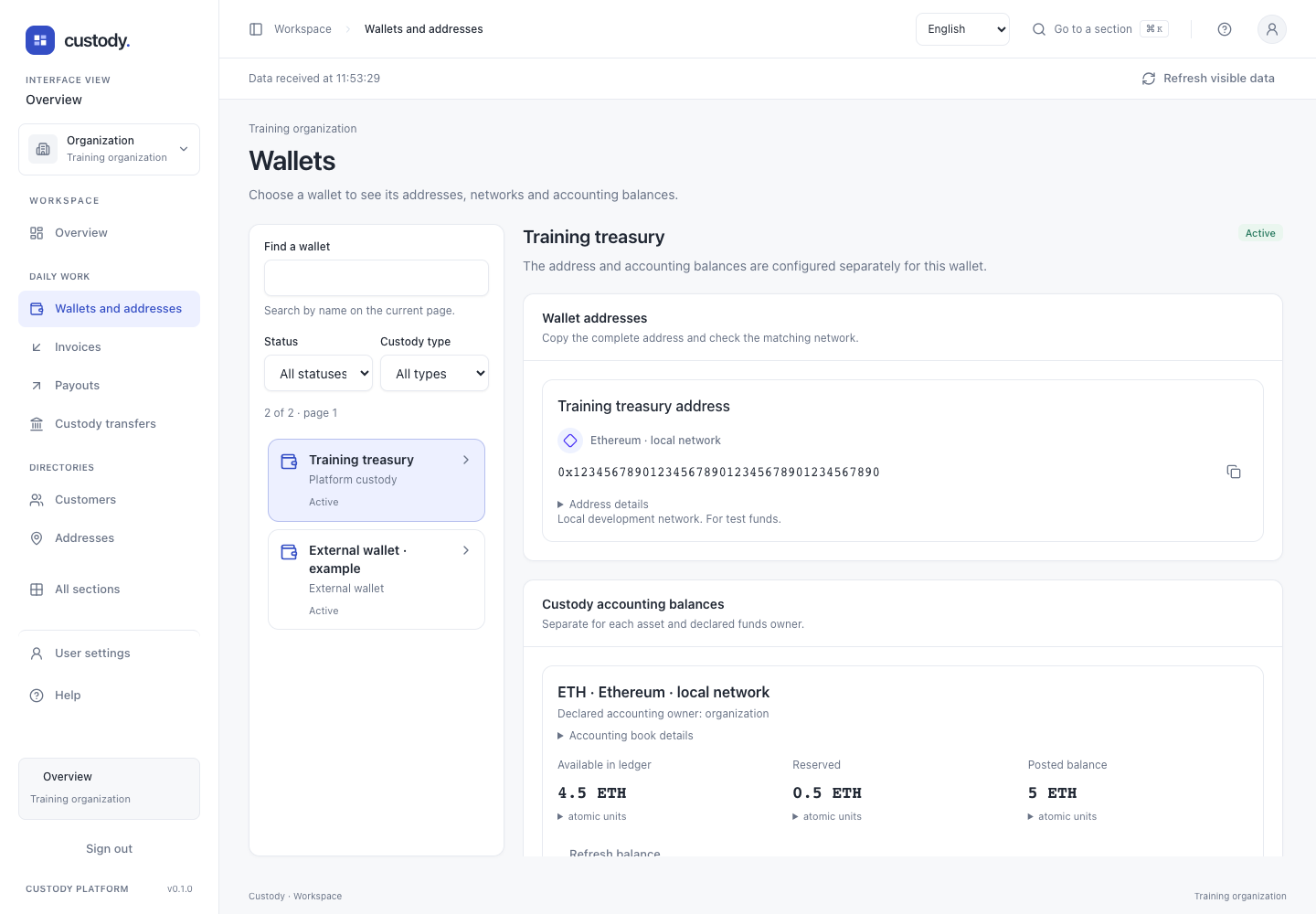
Wallets and receiving
Choose a wallet and use the full address on its exact network.
Step by step
- Under Sources, open Wallets or Addresses separately. Wallets starts with the complete paged list and a source label; By source changes the grouping. Sources shows the source → wallet → address hierarchy. Expand the required record; the chosen view stays in the page URL.
- In an expanded wallet, choose Create address, select a network and continue. Confirm creation and finish with Done once the complete address is available. An unfinished request resumes its original coordinates; another address is never created automatically.
- Search checks names on the current page and addresses in the open wallet. It does not load closed wallets for a hidden search. Use the page controls for more records and open the relevant source or wallet. The list scrolls within the available screen height.
- If no networks are connected, the form explains the prerequisite. With the relevant permission, Configure networks opens organization settings in another tab; return and choose Refresh network list. The name and confirmation stay in this tab for up to 24 hours, scoped to this organization, member and setup attempt. Changing the name or selected networks requires a new ownership confirmation. Seed words and passphrases never enter this form draft.
- Click the name or row of a Wallet address to open the same side panel as Public addresses. Expand tokens with the chevron; labels appear as tags. Copy and QR remain separate actions. Send funds appears only with the required permissions and source. Available funds opens accounting balances; a missing book never means zero.
- To import a phrase, choose Add wallet or address and the recovery-phrase option. Enter a name, choose enabled networks and confirm the economic owner: funds belong to the current organization. Use Advanced settings for a different owner. Open the protected window for the phrase and additional passphrase, if used. CRM never receives them.
- After successful import, the app prepares the wallet and first addresses. Following a reload, open the unfinished setup on Add wallet and select Continue. If the source-creation reply was lost, select the exact created source in advanced recovery; the app does not automatically create a duplicate. This setup does not discover all old addresses: first addresses do not establish complete history recovery.
- Open Receive, choose a wallet and then its actual admitted or bound address. A reserved address coordinate is shown as pending, not as an address ready to receive. Receive links after source import or address creation retain the exact source through organization selection, rereading its admission and current access. Ambiguous source links require selecting the wallet and address again. A bare public-address link opens observation without financial actions.
- Check the complete network name and full address before copying or scanning the QR. The QR is generated locally and contains only the address. Always verify the network in the sending wallet.
- Choose the exact asset to inspect an explicit on-chain balance observation. Its source time and block describe that observation only; they are not the custody ledger, available balance or permission to spend.
- Stored history covers only its displayed starting block and separate token boundary. If history is missing, choose Start from the current block to read the current height, review it and select Start history observation. The app checks the same block again before starting; a changed block requires a new review. Earlier activity is not scanned. Choose a starting block manually remains available for an intentional older boundary. Incomplete or missing coverage is not an empty history or zero balance.
- Custody balance cards keep posted, reserved and available amounts separate for each exact asset and declared owner. Open technical details for the exact value in the asset’s smallest units. Different networks, token contracts and owners are never summed as one balance.
- For an admitted custody address, choose the exact asset under Confirm received funds. Open its accounting book if needed, then select a successful canonical incoming record from the bounded history list. Use the page controls for more records, or Enter transaction manually when the receipt is outside stored coverage. Review the exact receiving source, asset, transaction and effect before Verify and credit received funds. The app rereads a selected history record; if it changed, refresh and review again. Only the backend’s qualified verification can record accounting credit. A lost reply keeps the original terms for explicit continuation and overrides any new selection.
- In Address history, choose Check history status to compare saved coverage with a bounded network observation. Read the check time, indexed block, observed head and coverage floors. Not observed stays unknown. Network disabled, review required, source unavailable, source behind and a differing checkpoint are distinct states. This button does not start, scan or repair history and never grants finality, credit or spending authority. It runs only when you select it; Refresh visible data does not repeat it.
- BTC, ETH and TRX icons identify the network or its native asset. Test networks have an explicit text badge. Links beside a network, address or transaction hash open its exact external explorer in another tab; local and unknown networks have no invented link.
- Choose Check funds on networks in an expanded Node wallet. The backend observes all registered receiving, change and archived addresses, up to its bounded complete scope. Each exact native/token asset has its own amount, block and coverage. Unavailable, disabled, inconsistent and unsupported (including BTC) never become zero. This is not historic address discovery, a Ledger balance or spendable funds. Refresh is explicit; focus and general refresh do not repeat RPC work.
- In Wallets and Addresses, Archive lists archived records; Restore from archive returns the same ID and history. Catalog archiving does not disable a resource or change keys or obligations. Archiving a Node or Wallet Account address binding separately blocks new operations until restored. Current rights and key confirmation are required. Reload after a revision conflict; read current state after an unknown response without repeating the command. Sources permits deletion only of an empty draft without any import request or child wallet: review its name, type DELETE and confirm with a key.
- Open an address from Wallets, Sources or Addresses. Its side panel immediately shows the network, Testnet marker, copyable address, tags and native/enabled token balances. Refresh each asset separately; contract and observation details remain secondary. Receive and QR show the address; Send for a known wallet opens its exact verified source. For an address without a wallet binding, copy the destination and choose a source wallet first. Observation grants no spending rights, and known custodial addresses do not offer an external connector. Archived address bindings retain history without new Receive or Send actions until restored.
- Copy and QR sit beside the address; its network appears beside the name. A public derivation path appears only when supplied by the backend. The drawer shows QR immediately, followed by Receive/Send and assets. Show all addresses opens only the selected wallet’s bindings, in bounded pages; an external wallet has a separate account selector. This is not a global list or an estimated total.
- An unfinished setup appears on its exact source. Continue setup opens the original process. An admitted source continues wallet and address creation without entering the seed again; an unknown result first requires recovery of the original request. A normal source without wallets is not labelled an unfinished import. New operations offer only networks available to the organization; historical records of disabled networks remain readable.
- Address QR codes include a small monochrome service mark. The payload remains only the unchanged address, without branding, network or amount; select the correct network in the sending wallet.
Interface